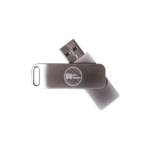
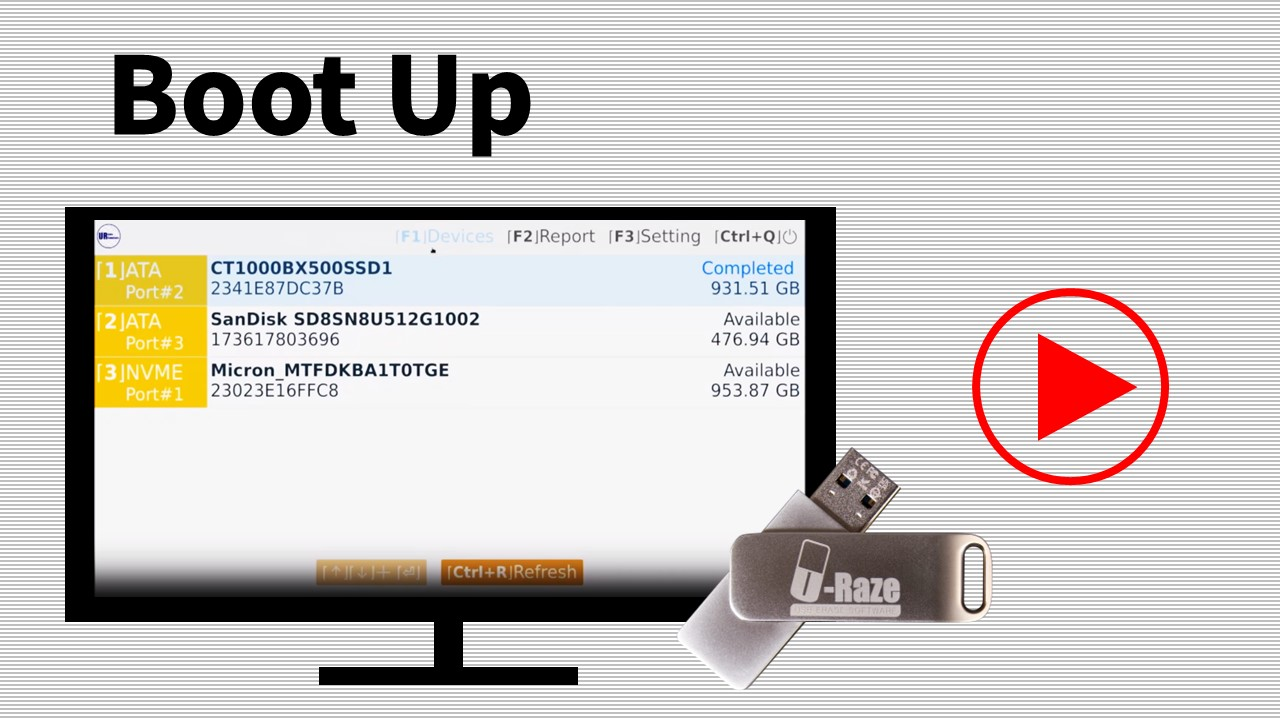
- USB-Based Operation: The software runs directly from a USB flash drive, eliminating the need for installation. This makes it convenient for use across multiple systems without leaving any software traces.
- Secure Data Erasure: The software employs 13 data-wiping algorithms to permanently remove files, ensuring that deleted information cannot be recovered by forensic tools. From “Fill with Zeroes” to “DoD 522.0.22-M”
- Cross-Platform Compatibility: can erase data from storage devices regardless of the operating system, making it a versatile tool for IT professionals and businesses managing multiple platforms. Works with any SATA, NVMe, or USB drive installed or plugged into your computer.
- Compact and Portable Design: Sleek design with a metal swivel chassis for protection and rigidity
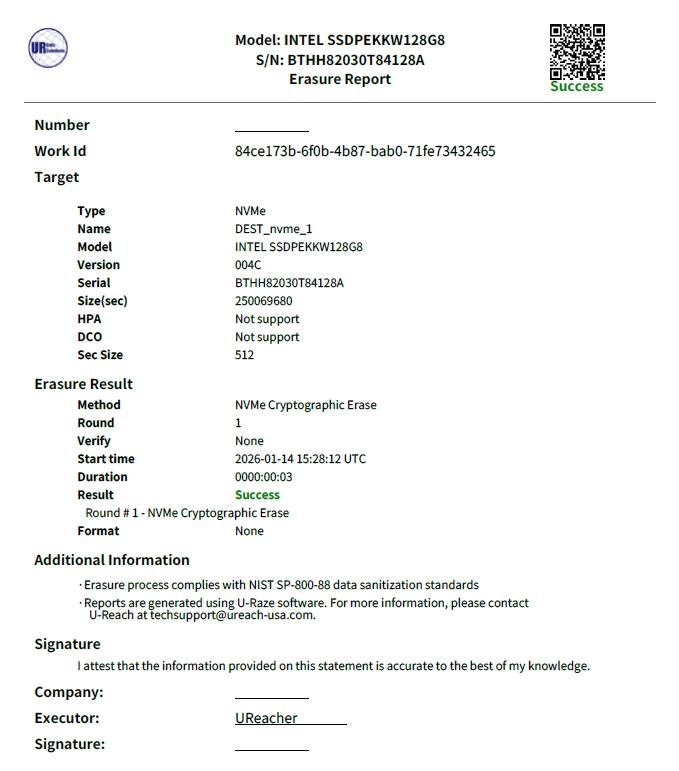
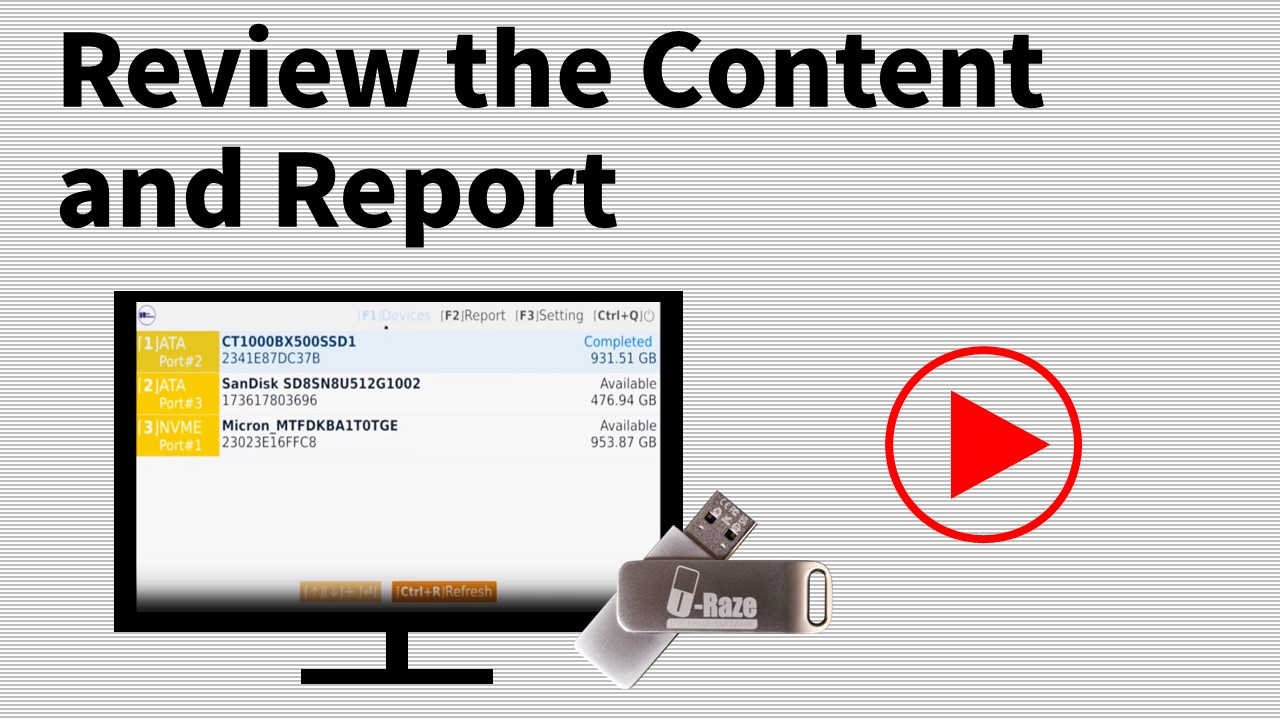
- Log Report Functionality: Saves all tasks as a PDF file in the USB device and records the date and time, erasure method, user, etc.
- Ease of Use: User-friendly interface, allowing users to initiate secure data deletion with minimal technical knowledge.
- Eco-Friendly: All packaging is made with 100% recycled material.
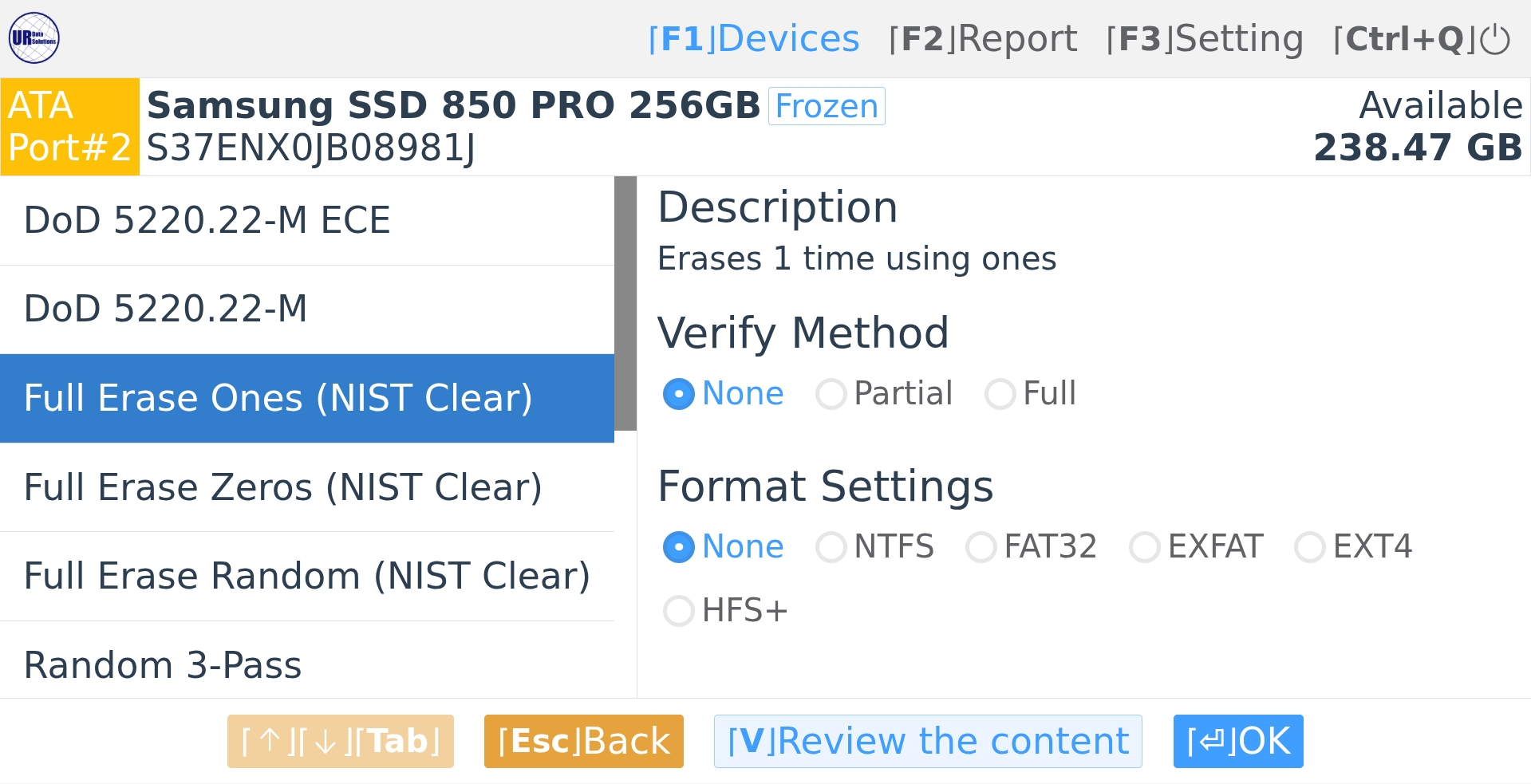
13 Erasure Methods
- Secure Erase
- Sanitize Erase
- Fill with Ones
- Fill with Zeroes
- Fill with Random Numbers
- Fill with “Random” 3 Times
- DoD 5220.22-M
- DoD 5220.22-M ECE
- NSA 130-1
- NVMe Cryptographic Erase
- RCMP TSSIT OPS-II Method
- HMG IS5 Baseline Method
- HMG IS5 Enhanced Method
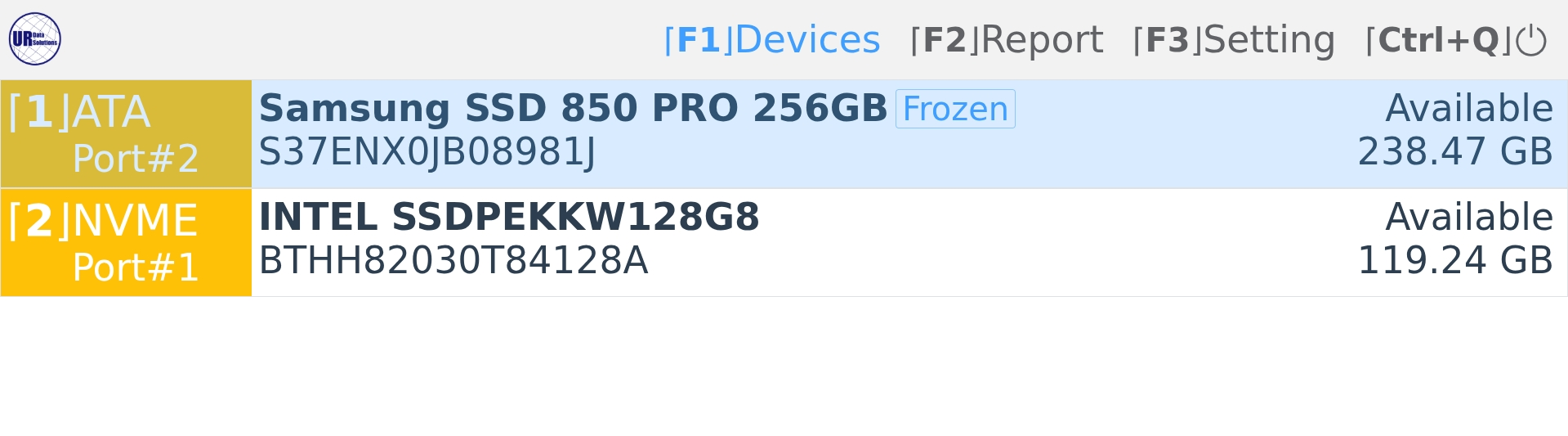
Disk Explorer
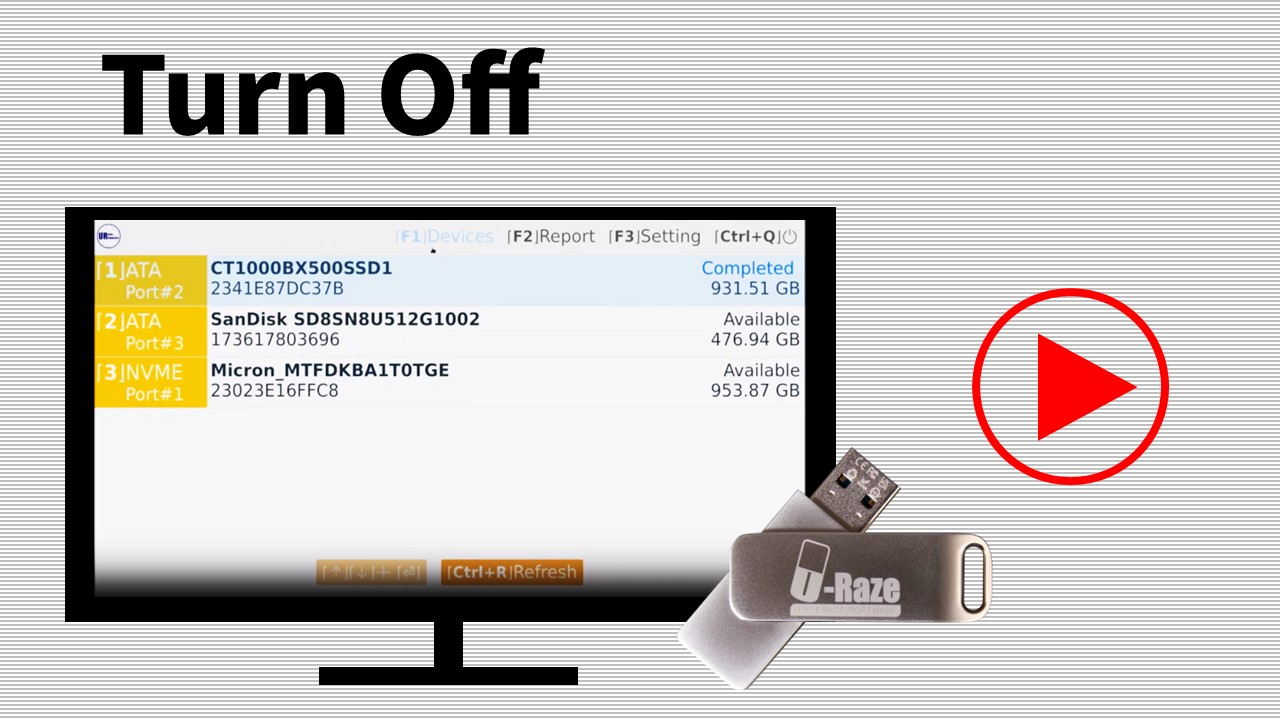
Display any detected disk or device
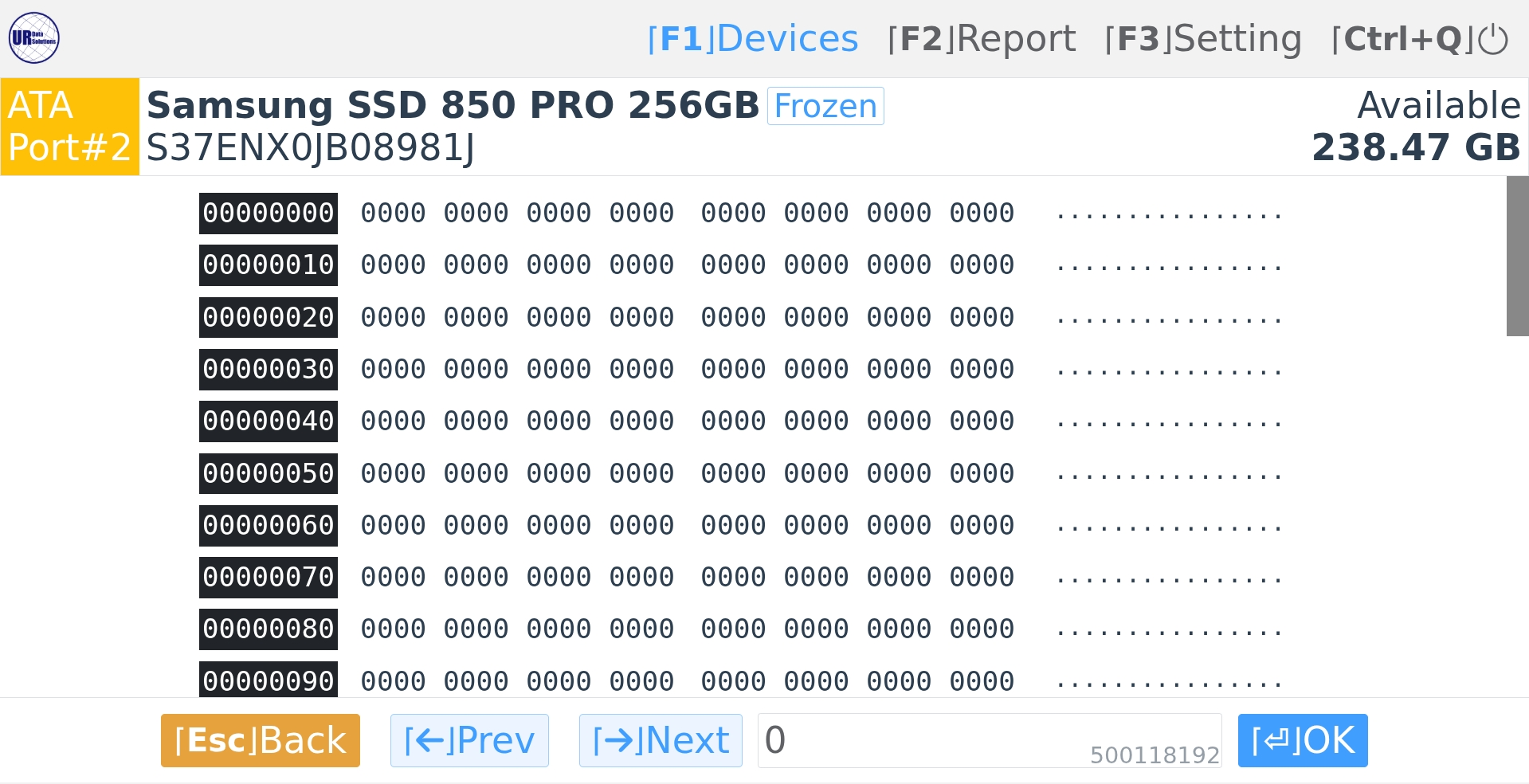
Disk Viewer
View contents of a selected drive before or after any task
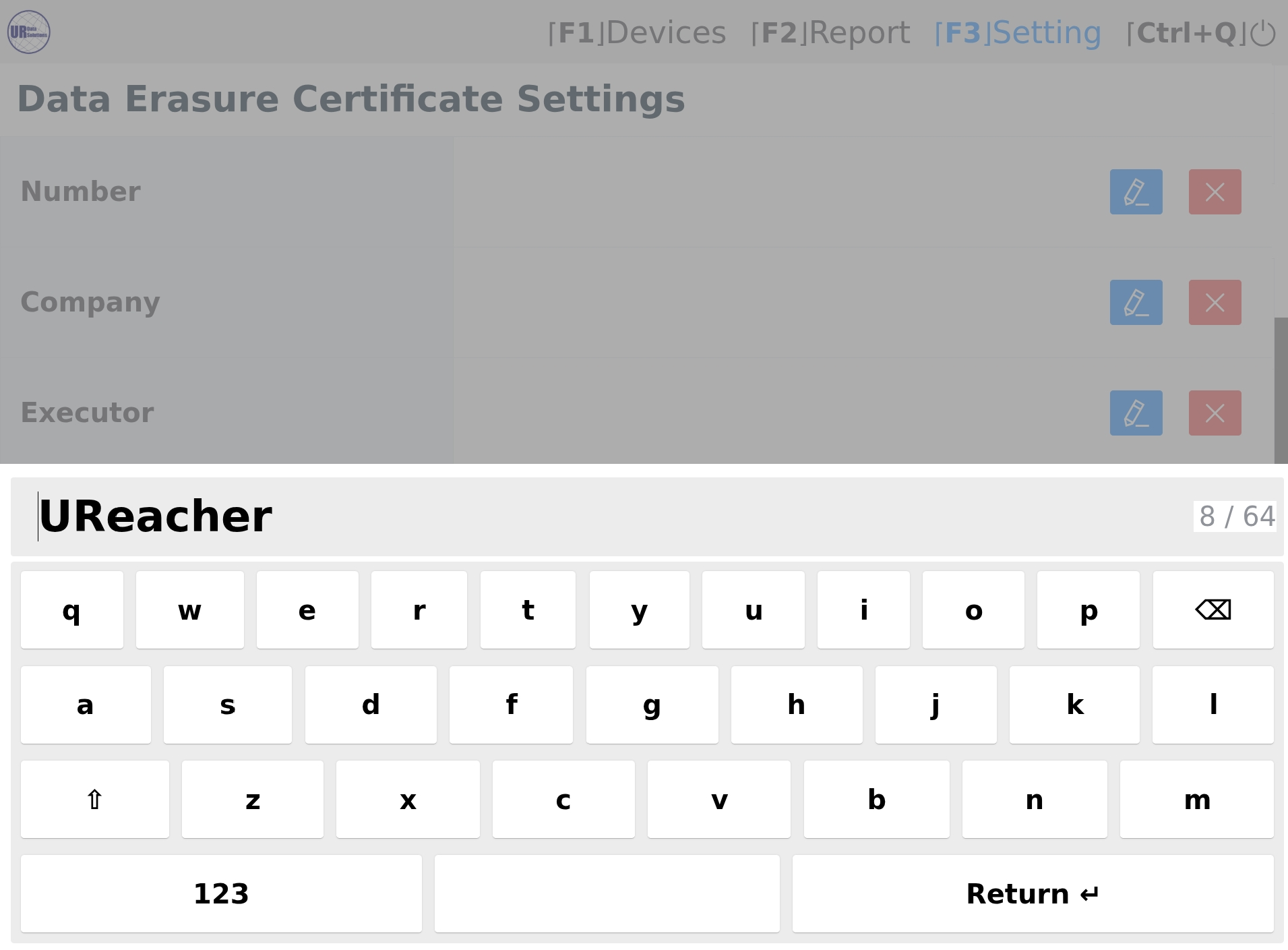
User Profile
Set a username while in use of the USB Erase device to indicate who is responsible for proceeding task(s)
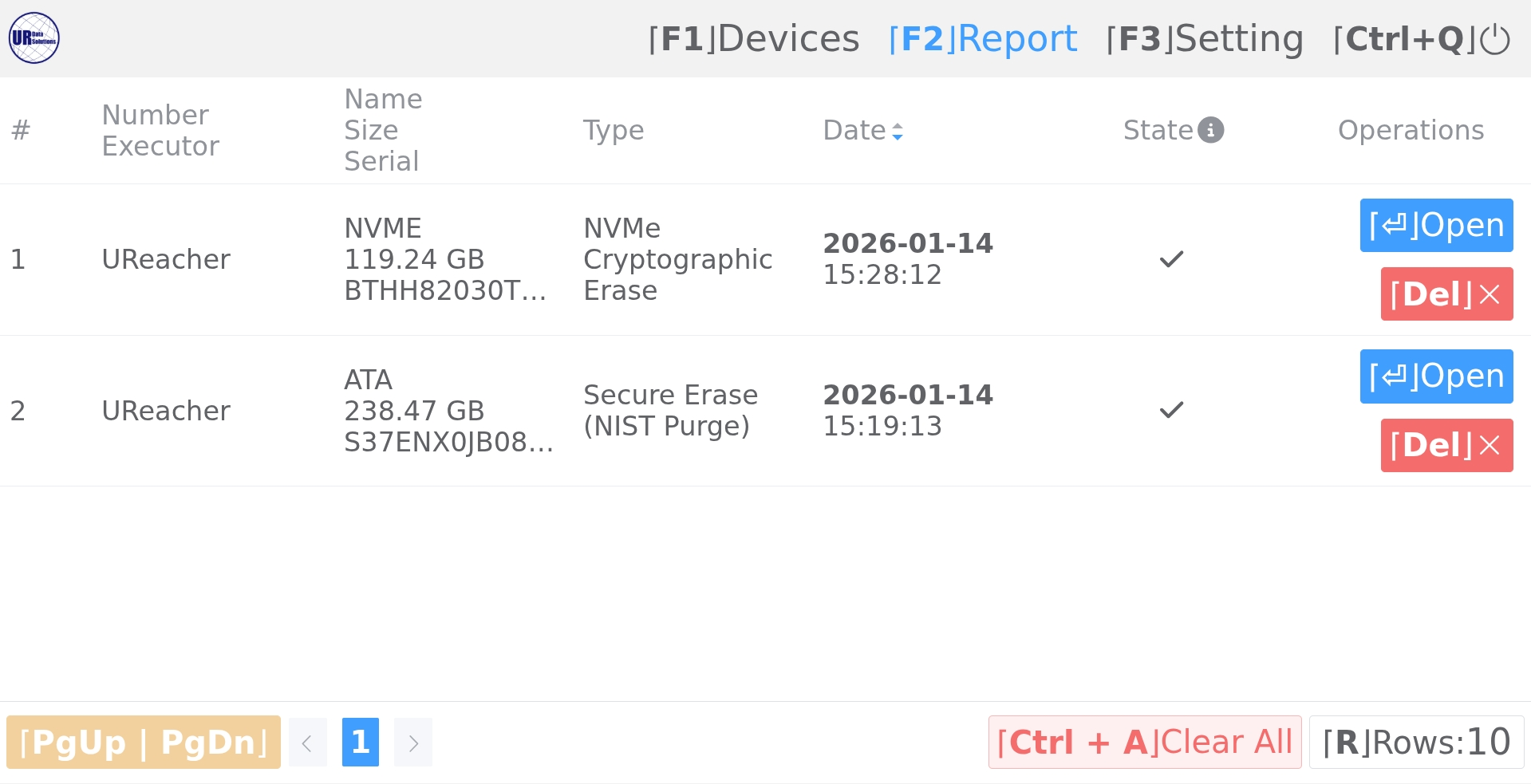
Log Report Viewer
List and view all task reports on the USB Erase Device
Log Report Example
| Certification | Description | Year Certified | ||
 |
Common Criteria Certification
An international standard (ISO/IEC 15408) that provides assurance of the security of IT products and systems by certifying that their security functions have been independently evaluated. |
Applying in Progress | ||
 |
General Intelligence and Security Service
The intelligence and security agency of the Netherlands, tasked with domestic, foreign and signals intelligence and protecting national security. |
Applying in Progress | ||
 |
National Cyber Security Centre
The National Cyber Security Centre, a part of GCHQ, helps businesses, the public sector and individuals protect the online services in the UK. |
Applying in Progress | ||
 |
NATO NIAPC
The NATO Information Assurance Product Catalogue (NIAPC), established under Technical & Implementation Directive AC/322-D(2019)0041-REV1, provides NATO nations, and NATO civil and military bodies with a catalogue of Information Assurance (IA) products, Protection Profiles and Packages that are in use or available for procurement to meet NATO’s operational requirements. |
Applying in Progress | ||
 |
Secura
A cybersecurity company that offers a variety of services, including testing, training, and certification for industrial and IoT environments. |
Applying in Progress | ||
 |
Traficom
Finnish Cybersecurity Label for smart devices, which is awarded by the National Cybersecurity Centre Finland under Traficom to indicate secure products, or a facility security clearance vetting certificate |
Applying in Progress | ||
 |
TÜV Saarland
TÜV signifies that a product, system, or service meets established safety, quality, and performance standards in Germany. |
Applying in Progress | ||
 |
ADISA
ADISA is a UK certification body that audits and certifies companies, processes, and software involved in IT asset disposal. It corroborates secure data sanitization methods and compliance with standards like NIST SP 800-88. |
ADISA certificate number: AAC185
Acquired: August 2025 |
||
| Model | URaze500 | ||
| Features | Operation Type | USB Flash Drive Startup | |
| O/S Support | Built-in O/S Utilized BIOS or UEFI startup | ||
| Compatible Devices | SATA and IDE connected HDDs (Hard Disk Drives) SATA and NVMe connected SSDs (Solid State Drives) eMMC (Embedded MultiMedia Card) storage USB flash drives and external USB storage devices | ||
| System Requirements | Processor | 1GHz or faster x86-64 processor | |
| Memory (RAM) | Minimum 2 GB | ||
| Display | Monitor with at least 1024×768 resolution | ||
| USB Port | USB 2.0 or higher | ||
| Specifications | Physical Dimensions (LxWxH) | 67mm x 19mm x 6mm (2.63in. x 0.75in. x 0.25in.) | |
| Product Weight | 0.03 kg (0.06 lbs.) | ||
| License Duration | 1 year | ||
**Specifications subject to change without notice.
| Title | URaze500 Erase Software | ||
| User Manual |  |
||
| Quick Guide | 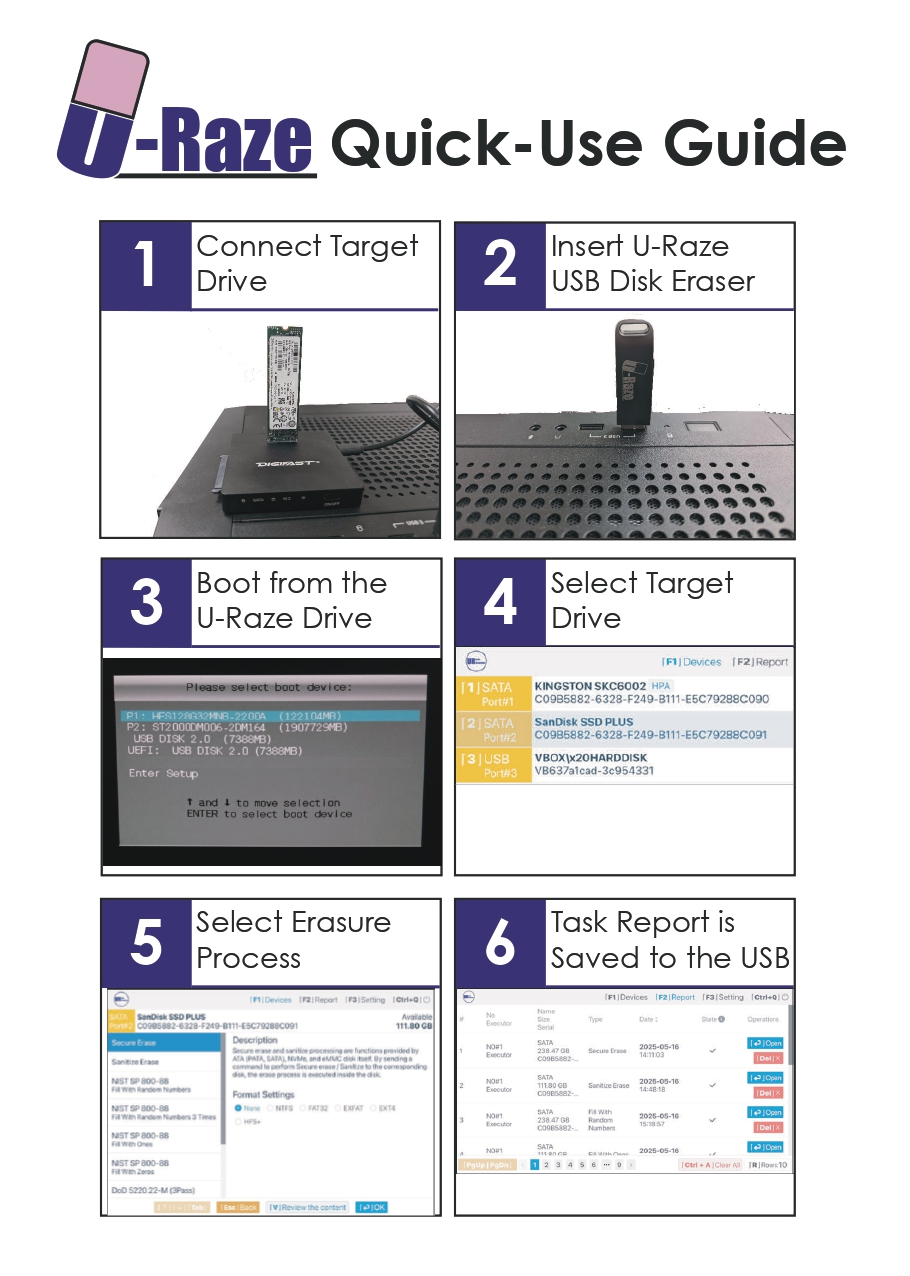 |
||
Q1. Do I need to install the software onto a drive?
No, the U-Raze USB is software that is run from the USB flash drive itself. Installation on a drive is not required, but the USB flash drive must be connected to the target computer until the data erasure process is completed.
Q2. Can this erase other USB drives?
Yes, the U-Raze USB can erase any SATA, NVMe, or USB device plugged in or installed on your computer.
Q3. Do I need to restart the software if I plug in a new drive?
No, once a new drive is installed, or plugged in, the U-Raze will shortly display it as an available drive.
Q4. Is the method for loading the software different on a Mac or Chromebook?
This method varies by manufacturer on startup you will need to press or hold a key, (commonly F2, F10, F12, Delete, Esc for Windows and Chromebooks, or the Option key for Mac). Look for a prompt on the screen during startup that indicates which key is necessary to press, or consult your PC manufacturer for details.
Q5. What if I want to save the log reports elsewhere?
All log reports are viewable via the log report viewer when using the software. Otherwise they are also all saved as a PDF on the drive itself and you may move or copy the files to wherever you may need them.
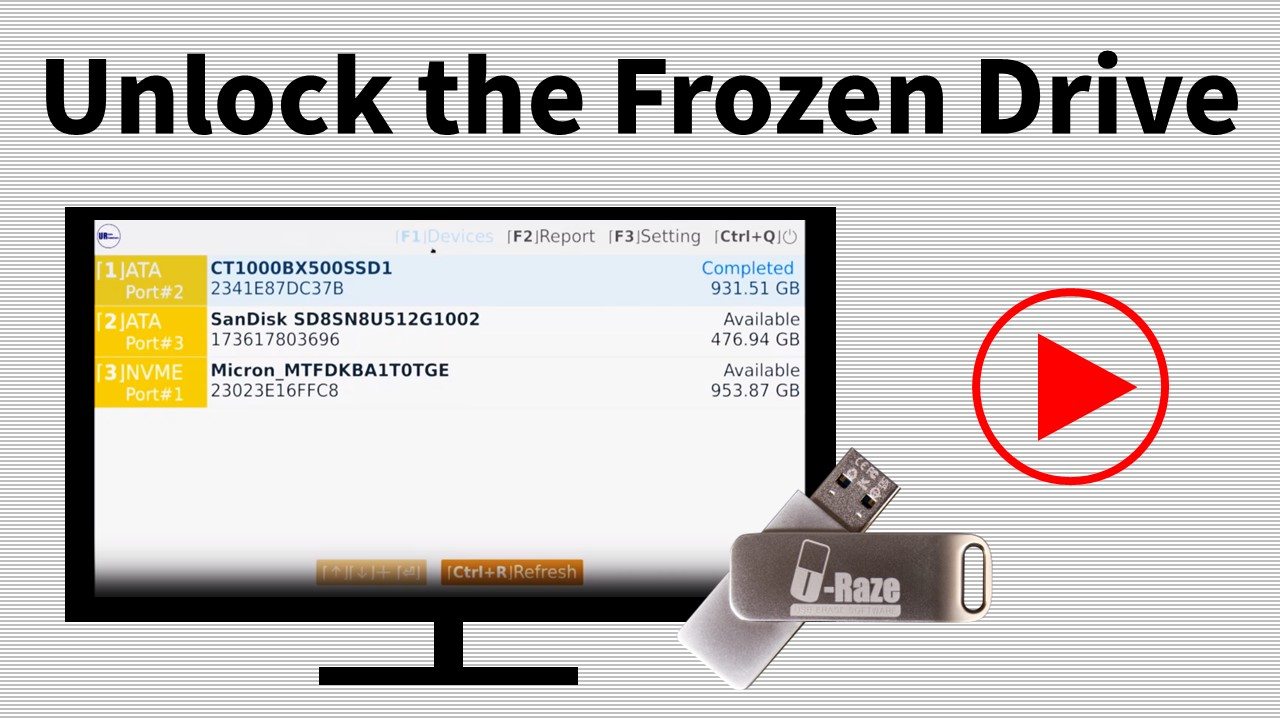
Q6. How to Secure Erase Disk in frozen state via U-Reach Disk Eraser?
• If the storage device is a portable data storage device, disconnect it, reconnect it, and wait for it to reappear in the device list.
• Put the system to sleep and then wake it up.
• Press the sleep button. When prompted to confirm hibernation, press OK again.
• Press the power button on the computer to resume operation.
• Wait for the computer to wake up completely.
• After the system is restored and the device status changes to “Available”, you can continue to use the security wipe feature to clear data.
Q7. How long can the software use?
1 USB, unlimited use for 1 year upon activation.
- USB-Based Operation: The software runs directly from a USB flash drive, eliminating the need for installation. This makes it convenient for use across multiple systems without leaving any software traces.
- Secure Data Erasure: The software employs 13 data-wiping algorithms to permanently remove files, ensuring that deleted information cannot be recovered by forensic tools. From “Fill with Zeroes” to “DoD 522.0.22-M”
- Cross-Platform Compatibility: can erase data from storage devices regardless of the operating system, making it a versatile tool for IT professionals and businesses managing multiple platforms. Works with any SATA, NVMe, or USB drive installed or plugged into your computer.
- Compact and Portable Design: Sleek design with a metal swivel chassis for protection and rigidity
- Log Report Functionality: Saves all tasks as a PDF file in the USB device and records the date and time, erasure method, user, etc.
- Ease of Use: User-friendly interface, allowing users to initiate secure data deletion with minimal technical knowledge.
- Eco-Friendly: All packaging is made with 100% recycled material.
13 Erasure Methods
- Secure Erase
- Sanitize Erase
- Fill with Ones
- Fill with Zeroes
- Fill with Random Numbers
- Fill with “Random” 3 Times
- DoD 5220.22-M
- DoD 5220.22-M ECE
- NSA 130-1
- NVMe Cryptographic Erase
- RCMP TSSIT OPS-II Method
- HMG IS5 Baseline Method
- HMG IS5 Enhanced Method
Disk Explorer
Display any detected disk or device
Disk Viewer
View contents of a selected drive before or after any task
User Profile
Set a username while in use of the USB Erase device to indicate who is responsible for proceeding task(s)
Log Report Viewer
List and view all task reports on the USB Erase Device
Log Report Example
| Certification | Description | Year Certified | ||
|
Common Criteria Certification
An international standard (ISO/IEC 15408) that provides assurance of the security of IT products and systems by certifying that their security functions have been independently evaluated. |
Applying in Progress | ||
|
General Intelligence and Security Service
The intelligence and security agency of the Netherlands, tasked with domestic, foreign and signals intelligence and protecting national security. |
Applying in Progress | ||
|
National Cyber Security Centre
The National Cyber Security Centre, a part of GCHQ, helps businesses, the public sector and individuals protect the online services in the UK. |
Applying in Progress | ||
|
NATO NIAPC
The NATO Information Assurance Product Catalogue (NIAPC), established under Technical & Implementation Directive AC/322-D(2019)0041-REV1, provides NATO nations, and NATO civil and military bodies with a catalogue of Information Assurance (IA) products, Protection Profiles and Packages that are in use or available for procurement to meet NATO’s operational requirements. |
Applying in Progress | ||
|
Secura
A cybersecurity company that offers a variety of services, including testing, training, and certification for industrial and IoT environments. |
Applying in Progress | ||
|
Traficom
Finnish Cybersecurity Label for smart devices, which is awarded by the National Cybersecurity Centre Finland under Traficom to indicate secure products, or a facility security clearance vetting certificate |
Applying in Progress | ||
|
TÜV Saarland
TÜV signifies that a product, system, or service meets established safety, quality, and performance standards in Germany. |
Applying in Progress | ||
|
ADISA
ADISA is a UK certification body that audits and certifies companies, processes, and software involved in IT asset disposal. It corroborates secure data sanitization methods and compliance with standards like NIST SP 800-88. |
ADISA certificate number: AAC185
Acquired: August 2025 |
||
| Title | URaze500 Erase Software | ||
| User Manual | | ||
| Quick Guide | | ||
Q1. Do I need to install the software onto a drive?
No, the U-Raze USB is software that is run from the USB flash drive itself. Installation on a drive is not required, but the USB flash drive must be connected to the target computer until the data erasure process is completed.
Q2. Can this erase other USB drives?
Yes, the U-Raze USB can erase any SATA, NVMe, or USB device plugged in or installed on your computer.
Q3. Do I need to restart the software if I plug in a new drive?
No, once a new drive is installed, or plugged in, the U-Raze will shortly display it as an available drive.
Q4. Is the method for loading the software different on a Mac or Chromebook?
This method varies by manufacturer on startup you will need to press or hold a key, (commonly F2, F10, F12, Delete, Esc for Windows and Chromebooks, or the Option key for Mac). Look for a prompt on the screen during startup that indicates which key is necessary to press, or consult your PC manufacturer for details.
Q5. What if I want to save the log reports elsewhere?
All log reports are viewable via the log report viewer when using the software. Otherwise they are also all saved as a PDF on the drive itself and you may move or copy the files to wherever you may need them.
Q6. How to Secure Erase Disk in frozen state via U-Reach Disk Eraser?
• If the storage device is a portable data storage device, disconnect it, reconnect it, and wait for it to reappear in the device list.
• Put the system to sleep and then wake it up.
• Press the sleep button. When prompted to confirm hibernation, press OK again.
• Press the power button on the computer to resume operation.
• Wait for the computer to wake up completely.
• After the system is restored and the device status changes to “Available”, you can continue to use the security wipe feature to clear data.
Q7. How long can the software use?
1 USB, unlimited use for 1 year upon activation.